Enter New Items
New Item Registration (Add New Products)
The Enter New Items menu is used for adding new product information into the Villa Market VMI system. This module allows suppliers to submit complete product details for approval before the items can be listed and sold in Villa Market stores.
The screen is separated into two main sections:
Query Page – used to review existing new-item entry documents
New Item Entry Page – used to register new product data
1. Query Page (Search Existing Documents)
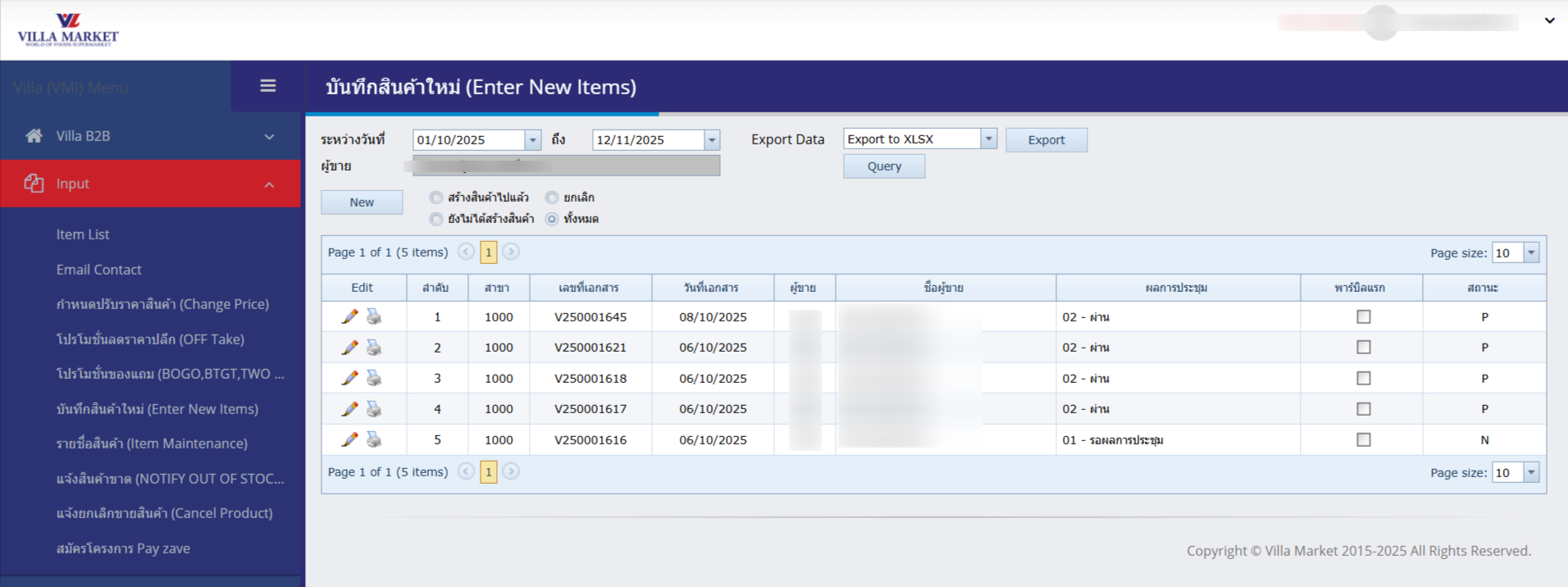
The Query Page is used to review the status of all new item entry submissions. Suppliers can filter and view documents based on date, supplier name, or other criteria.
🔍 How to Search
Select Start Date – End Date Filter documents within the desired submission period.
Supplier Information The system automatically displays the supplier currently logged in.
Click “Query” The system will show all matching new item entry documents.
If no criteria are entered, the system displays all entry documents within the selected date range.
🔍 Steps to Search
Select Start Date – End Date Filters documents within the selected time period.
Select Supplier The system shows the supplier linked to the login session.
Click “Query” The system displays all matching documents in a table below.
📌 Additional Functions
New
Create a new item-entry document
Export Data
Export table data in XLSX format
Document Status
Example: • N = New item not yet created • P = Verified / Passed review
Meeting Result
Shows approval outcome, e.g.: “02 - Approved” “01 - Pending Meeting Result”
2. New Item Entry Page (Create New Items)
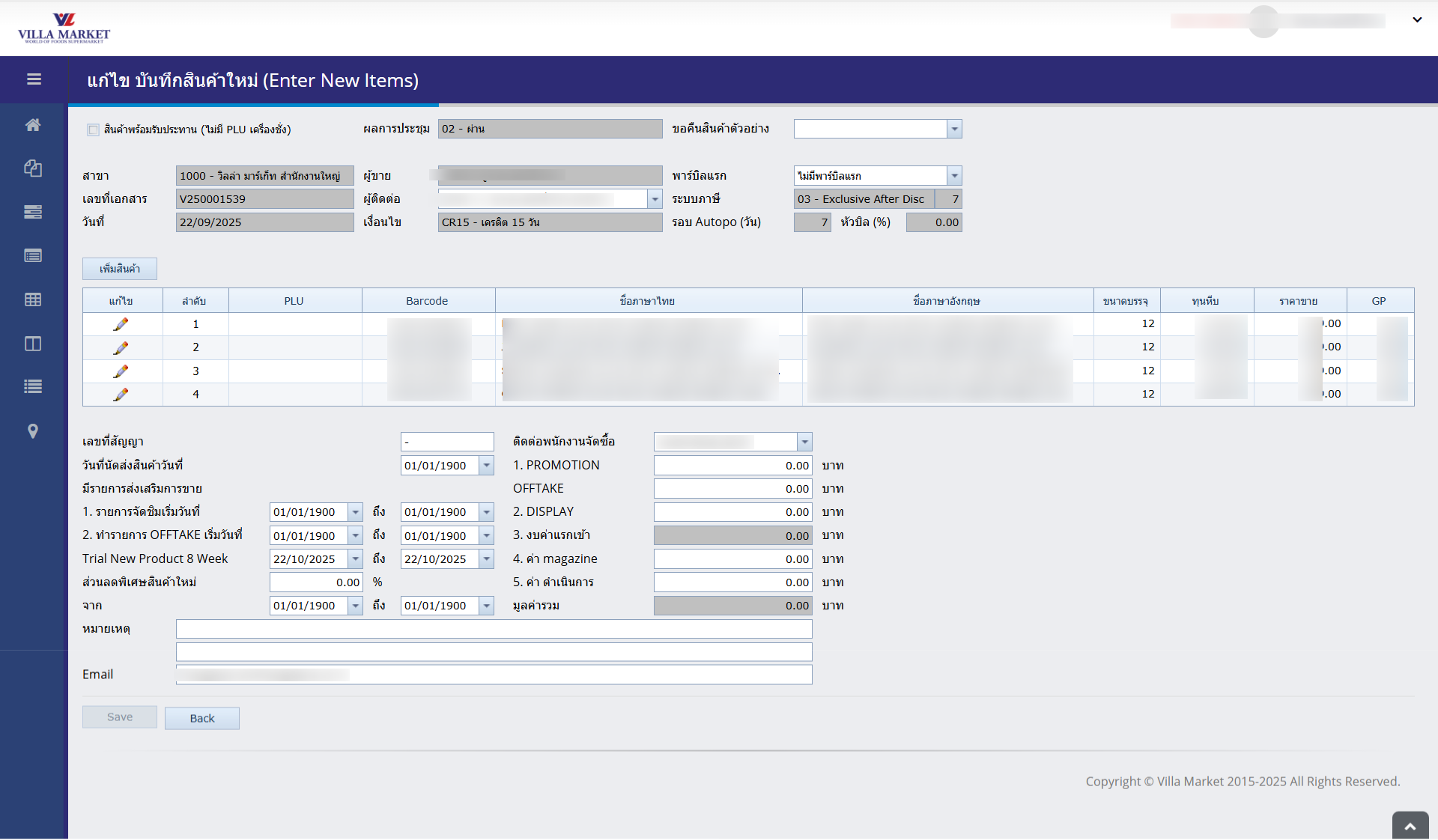
When clicking New, the system opens the New Item Entry Page.
You may add multiple items in one document only if:
They belong to the same department,
Same category / same type,
Or same sales characteristics.
⚠️ Important Notes
All empty fields must be completed to avoid rejection.
Grey fields cannot be edited (system-generated), such as:
Supplier
Status
Meeting Result
🧩 Top Section of the Page – General Information
Ready-to-Eat (No PLU)
Used when the product does not have a PLU code yet
Meeting Result
Approval status, e.g., 02 - Approved / 01 - Pending
Sample Return Request
Choose whether Villa Market should return product samples
Branch
The branch submitting the new item (e.g., 1000 – Head Office)
Supplier / Contact / First Partner
Supplier & contact person details
Tax System
Example: 03 – Exclusive After Discount
Auto PO Cycle / Invoice Header (%)
Auto purchase cycle (every 7 days), invoice header percentage
🧾 Middle Section – Marketing & Budget Information
This section includes optional promotional information:
Sampling program
OFF TAKE support
Display budget
Inbound budget
Magazine cost
Other marketing expenses
Also includes:
Trial New Product 8 Week (start/end dates)
Special Discounts (amount & total value)
📩 Bottom Section – Remarks & Submission
Remarks
Additional notes or comments
Email addresses for notification copies
Save / Back
Save the document or return to the list page
🧱 New Item Pop-Up Window
When clicking Add Product, a new window appears with 5 tabs:
Product Information
Product Details
Sales Info 1
Sales Info 2
Product Description (Extra)
2.1 Tab 1 – Product Information
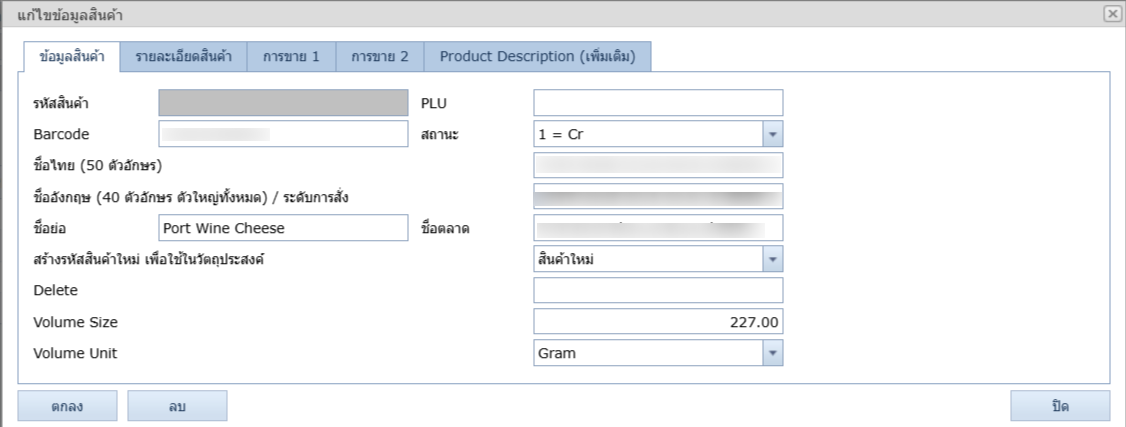
Product Code / Barcode
Core item code and barcode
Thai Name / English Name
Enter full names in both languages
Short Name / Market Name
Short name used for reports or system display
New Product Purpose
Purpose such as Promotion, New Listing, etc.
Volume Size / Unit
e.g., 500 ml, 200 g
2.2 Tab 2 – Product Details
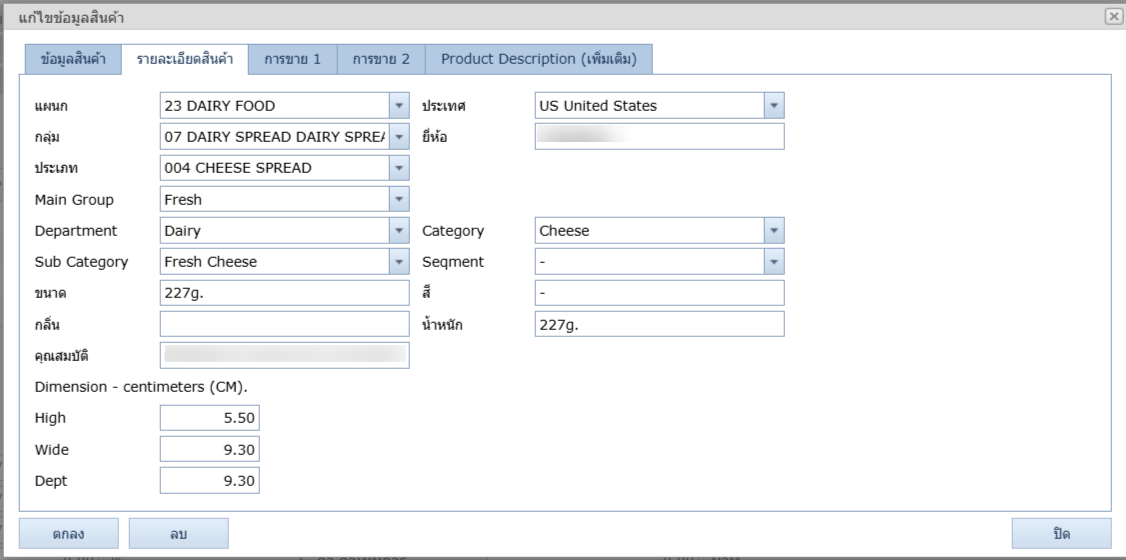
Department / Group / Type
Product categorization
Main Group / Sub Category
Additional hierarchy information
Brand / Country of Origin
Manufacturer details
Color / Scent / Weight
Product attributes
Dimension
Width × Height × Depth (cm)
2.3 Tab 3 – Sales Info 1
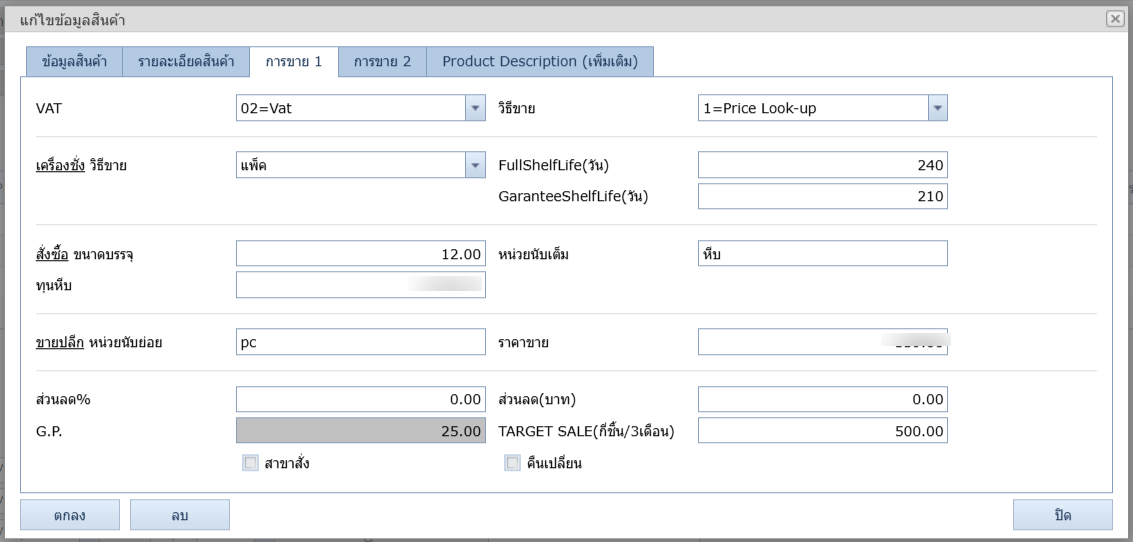
VAT / Sales Method / Scale / Review
Selling & taxation method
FullShelfLife / GuaranteeShelfLife
Total life & minimum remaining shelf life
Cost / Retail Price / Discount / G.P.
System uses this to calculate profit margin
Target Sale (3 Months)
Sales projection for first 3 months
Returnable
Tick if product can be returned
2.4 Tab 4 – Sales Info 2
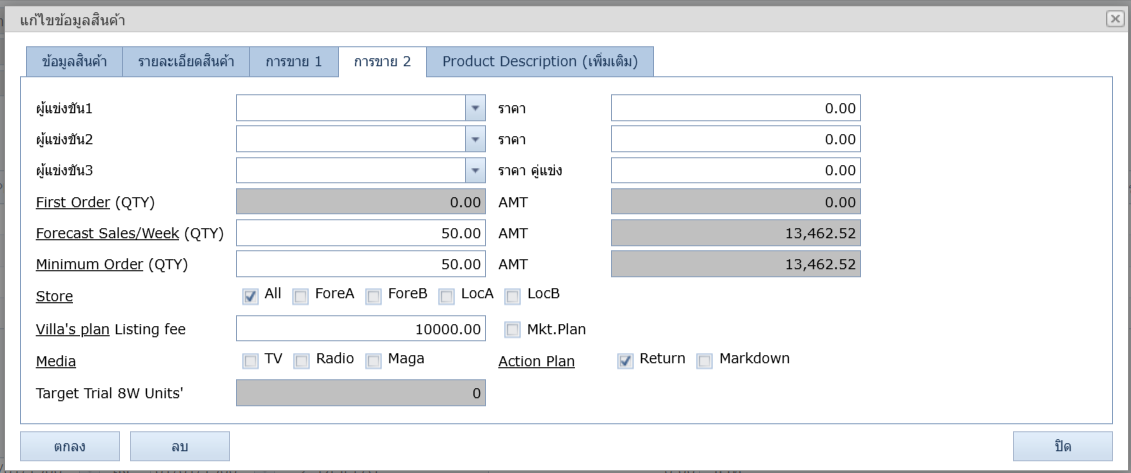
Competitor 1–3
Competitor brand names & prices
First Order / Forecast / Minimum Order
Starting order, weekly forecast & minimum purchase
Store
Example: ALL, ForeA, LocA
Villa’s Plan / Media / Action Plan
Marketing plan such as TV, Magazine, Promotion Markdown
Target Trial 8W Units
Quantity for 8-week trial period
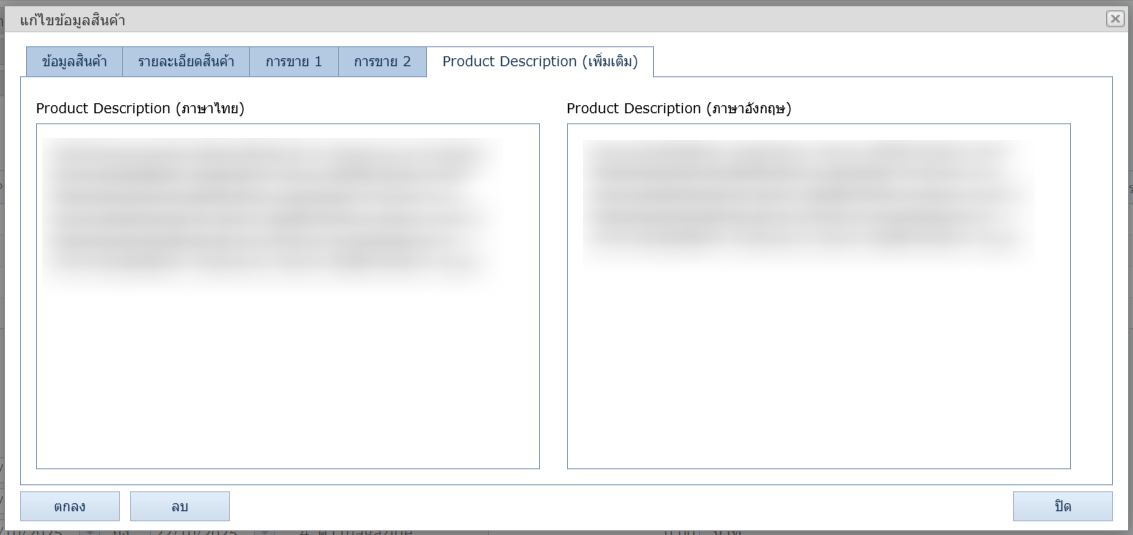
2.5 Tab 5 – Product Description (Extra)
Used to provide extended product descriptions in both Thai & English, including:
Features
Ingredients
Selling points
Instructions for use
✅ Steps to Submit New Items
Go to Enter New Items
Click New
Fill in all fields in the main page
Click Add Product → Fill in all 5 tabs (Tab 1–5)
Review all information carefully
Click Save
Wait for Villa Market’s purchasing team to review & approve
📘 Summary
The Enter New Items page is the primary tool for suppliers to register new products into Villa Market’s system. By completing all fields across all tabs, suppliers ensure smooth approval and product setup. Accurate information helps avoid delays and ensures successful product listing in Villa Market stores.
Last updated