OFF Take
Temporary Retail Price Discount Promotion (OFF Take)
This screen is used to search, view, and manage temporary retail price discount promotions (OFF Take Promotions). Users can review the promotion period, department, and supplier that initiated each promotion.
1. Query Page (Search Page)
The query page allows users to filter and search for promotion documents quickly. Results are displayed in a table format showing key details of each promotion.
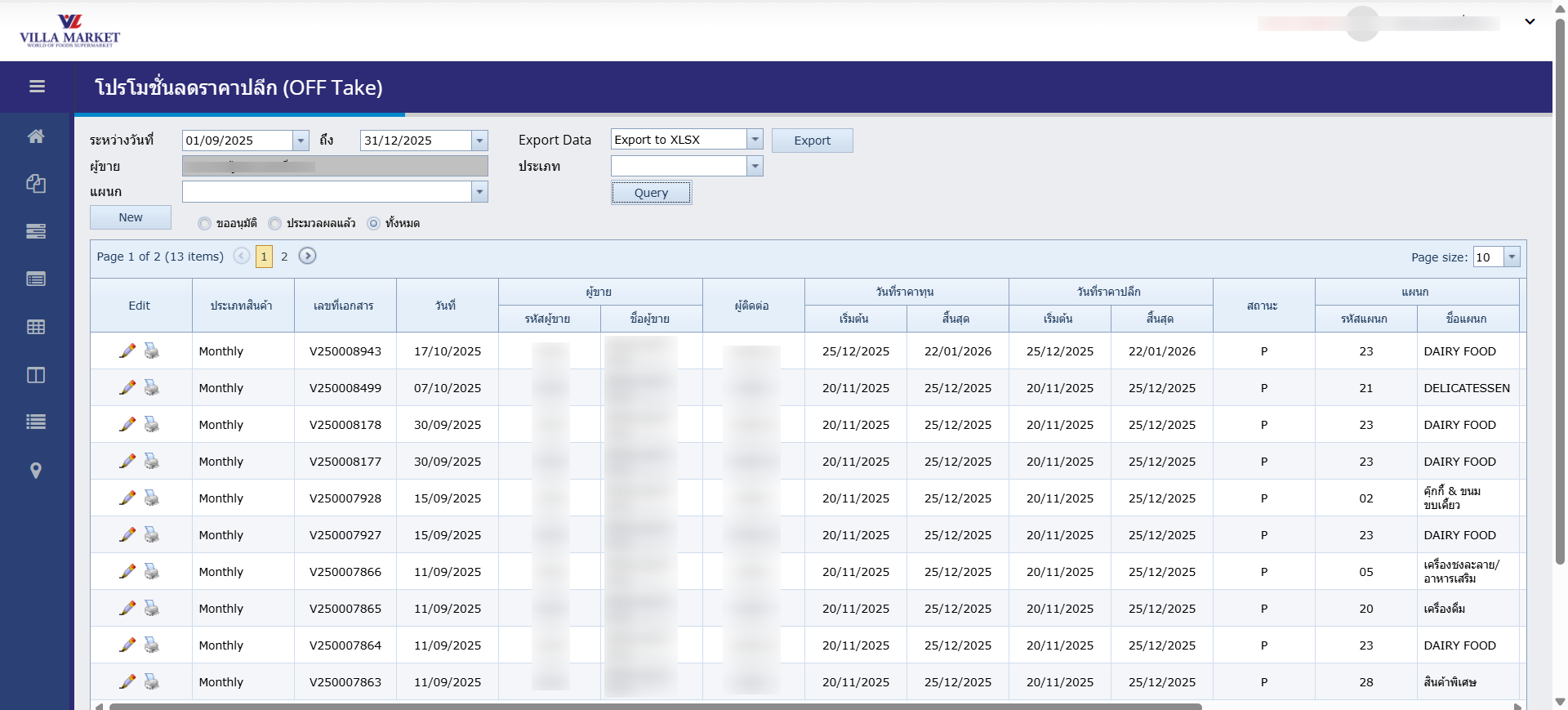
🔍 How to Search
1. Select Date Range (From – To)
Choose the start and end dates of the promotion period you want to search for. The system will display only documents within that selected date range.
2. Supplier Information
The system automatically displays the supplier currently logged in.
3. Select Department
Choose the department responsible for the promoted items. Available department codes include:
0 - None 01 - Liquor 02 - Cookies & Snacks 03 - Ready-to-Eat Food 04 - Japanese Food 05 - Beverage / Supplements 06 - Canned / Bottled Goods 07 - Grocery 08 - Cooking Oil / Ingredients / Baking Supplies 09 - Beauty Aid 10 - Household Products 11 - Tobacco 12 - Pet Food & Accessories 13 - Bakery Ingredients 14 - General Merchandise 15 - Wholesale 16 - (Not in use) 17 - Japanese Seasoning 18 - Bakery 19 - Consignment 20 - Beverages 21 - Delicatessen 22 - Frozen Food 23 - Dairy Food 24 - Fresh Meat 25 - Stationery 26 - Books 27 - Weighted Items 28 - Special Items 29 - Seasonal Items 30 - Office Supplies 35 - Special Wholesale
4. Select Document Type
Used to filter promotion types:
03 - Mail Monthly 05 - Mail Weekly 06 - In Store Monthly 07 - In Store Weekly 08 - In Store Mid Month 13 - VL Index HH 14 - VL Circle RPK 15 - VL UD Town 16 - New Store 17 - Clearance 18 - Drive Sales 19 - Seasonal 20 - Monthly 21 - Mid Month
5. Click “Query”
The system will display all matching promotion documents. If no filter is applied, the system shows all promotions for the supplier within the selected date range.
🗂️ Search Results Table
Each row in the table represents one promotion document.
Edit
Open the Edit page or view promotion details
Promotion Type
Monthly, Special, Seasonal, etc.
Document No.
System-generated document reference
Date
Document created or approved date
Supplier / Contact
Supplier name and primary contact
Cost / Retail Price Date
Effective promotion date range
Status
e.g., P = Pending
Department Code / Name
Department responsible for the promotion
Contract / Promo No.
Contract or promotion reference number
2. New / Edit Promotion Page
This screen allows users to create a new promotion (New) or edit an existing document (Edit). Both pages share the same layout and data fields.
There are 2 main tabs:
Contract
Detail
💡 Note: “New” and “Edit” pages are identical in structure. The only difference is whether the document is already created and its editable status.
2.1 Tab 1: Contract
This tab contains the foundational information of the promotion contract. Grey fields cannot be edited (system-generated). White fields must be filled in by the supplier.
Contract Fields
Contract No.
Auto-generated when saving (Running Number)
Contract Date
Date the promotion contract is created
Contract Type
System-defined as “OFFTAKE”
Supplier
Supplier name (e.g., 1808 – Food Gallery Co., Ltd.)
Name
Company or brand owner name
Purchasing
Dropdown listing Villa Market purchasing staff
Start / End Date
Promotion period (system calculates total days automatically)
Description
Notes or explanation of the promotion campaign
Budget %
Discount or contribution percentage (if applicable)
Payment Method
Dropdown: Cash / Cheque / A/R Deduction
Installments
Number of payment installments
Due Date
Payment due date
Withholding Tax / VAT / Net Amount
Auto-calculated by the system
Confirm Contract
Checkbox to confirm before saving
2.2 Tab 2: Detail
This tab contains details of the promotion such as promotion category, period, and participating stores.
Detail Fields
Document No.
System-generated, cannot be edited
Status
e.g., P = Processed
Date
Document creation date
Supplier / Contact / Department
Auto-filled from Contract tab
Promotion Period
Start and end dates of the retail price discount
Mail Budget
Budget amount (if any)
Period
Dropdown: 20 = Monthly, 21 = Mid Month
Pro Title
Dropdown: CR, DS, ML, NS, NW, SN
Branch Selection
Tick “Active” to enable promotion in selected stores
3. Adding Products to the Promotion
After completing all required fields → click “Add Product”. A pop-up window will open for product-level details.
Product Detail Fields
Product Code / Barcode / Name
Select the item to include in the promotion
Retail Price (Old/New)
System displays old price; user enters new price
Cost per Unit
Cost used for calculations
Discount % / Special Discount
Enter discount details
Net Cost / Status
System calculated
Target Unit / Margin Difference
Unit and margin support information
Smart Tag / Shelf Arrangement
Store display placement options
Click OK to add the product to the promotion document.
4. Save & Submit for Approval
Before clicking Save, ensure:
All fields in both tabs are completed
All promotional items are added
The promotion dates and department are correct
Once saved:
The system generates the document number
The document status becomes “Pending Approval”
Villa Market’s purchasing team will review and approve
⚠️ Important Notes
If no items are added, the system cannot save the document.
Always double-check date ranges and department information.
Grey fields are system fields and cannot be edited.
✅ Summary
The OFF Take New/Edit Page allows suppliers to create and manage temporary retail price discount promotions in full detail. The system supports automatic calculations, built-in validation, date calculation, and branch activation. Once completed and saved, the document is ready for approval by Villa Market’s purchasing team.
Last updated