Cancel Product
Product Cancellation Notification (Supplier → Villa Market)
The Cancel Product menu allows suppliers to notify Villa Market when a product must be discontinued or removed from the sales system. Common reasons include: end of contract, discontinued production, packaging changes, or temporary suspension of sales.
By submitting the notification, the system and purchasing team will be aware and can adjust product data accordingly.
📄 Main Page (Query Page)
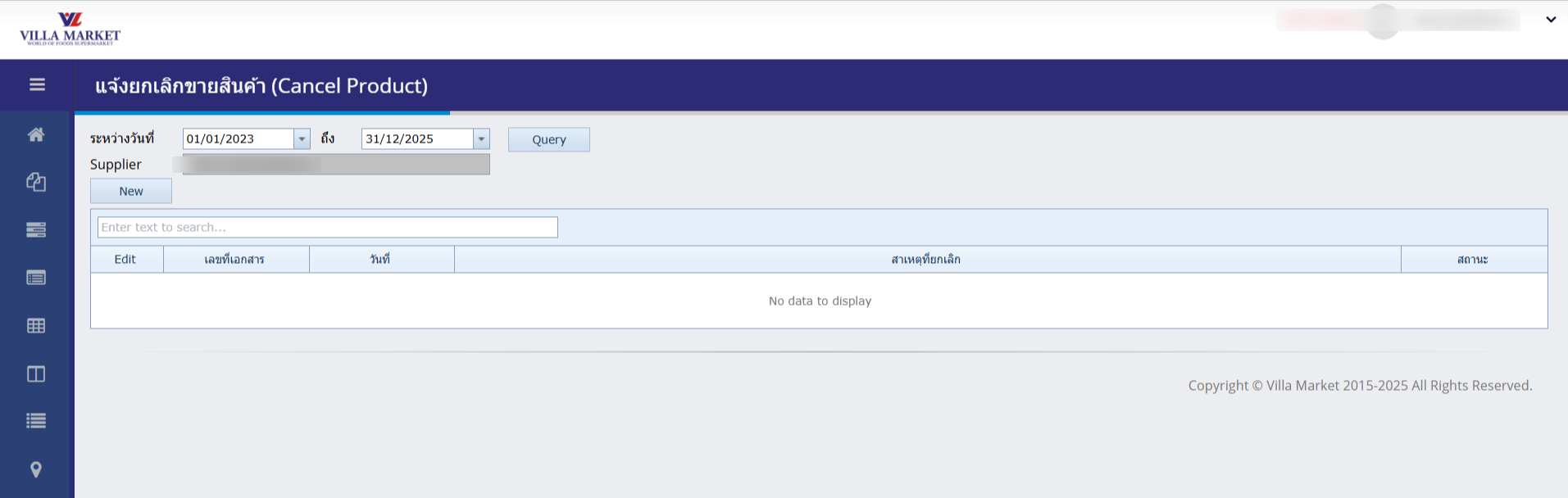
On the main Cancel Product page, suppliers can search existing cancellation records or create a new document.
🔍 Search Filters
Date Range
Select the period in which product cancellation documents were created
Supplier
Displays the logged-in supplier, e.g., 1808 – Food Gallery Co., Ltd.
Query
Button to fetch all matching cancellation records
New
Button to create a new cancellation document
📋 Search Results Table
Edit (✏️)
Open existing document for editing
Document No.
Unique reference number of the cancellation record
Date
Date the cancellation document was created
Reason
Reason for cancelling the product
Status
Status such as NEW, IN PROCESS, CLOSED
💡 If no data exists in the selected date range, the table will be empty.
🆕 Creating a New Cancellation Document (New)
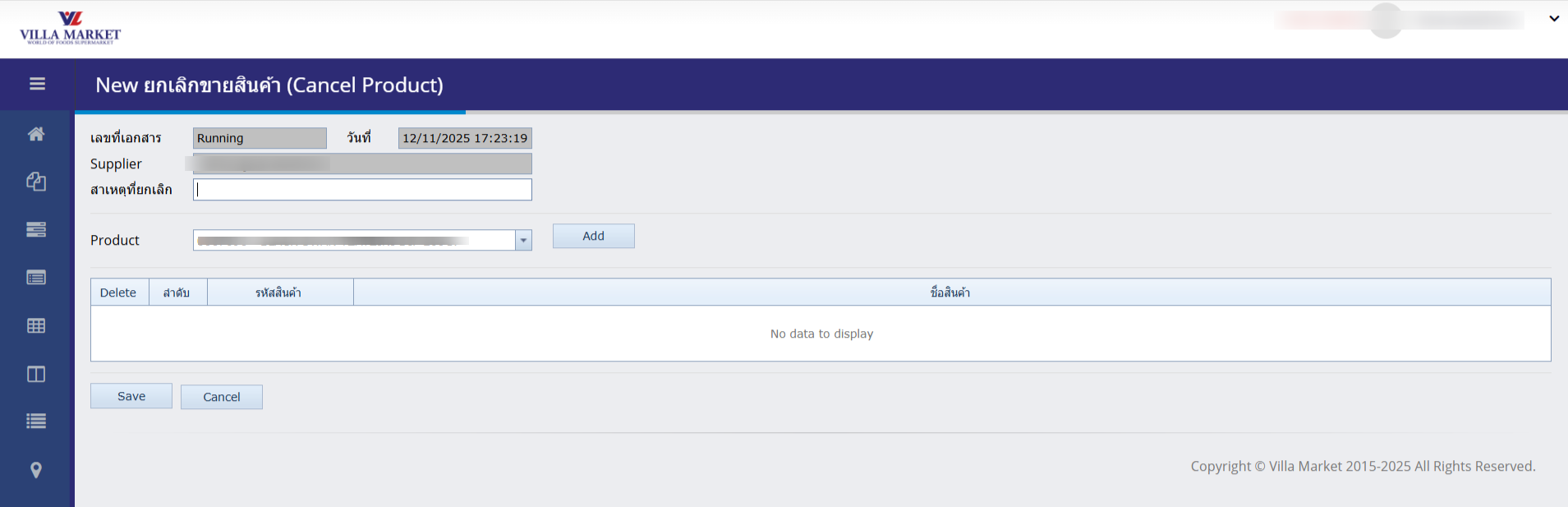
Click New to open the form for creating a product cancellation request.
🧾 Product Cancellation Form Fields
Document No.
Auto-generated running number
Date
System-generated creation date
Supplier
Logged-in supplier name
Reason
Enter the reason for cancellation (e.g., End of contract, Discontinued production, Packaging change)
Product
Select the product code or name to cancel
Add
Add the selected product into the cancellation list
After pressing Add, the product will appear in a list table with columns such as:
Sequence number
Product code
Product name
Delete button
✔️ Steps to Create and Save a Cancellation Document
Click New to start a new form
Fill in all required fields, especially Reason
Select the product(s) to cancel
Click Add to include them in the list
Review accuracy of the document
Click Save to submit, or Cancel to discard changes
⚠️ Gray fields are system-controlled and cannot be modified (e.g., Date, Supplier, Document No.)
After saving, the system notifies Villa Market for review and further processing.
📌 Document Status
NEW
Newly created by the supplier
IN PROCESS
Under review by Villa Market
CLOSED
Cancellation completed; record is closed
📘 Summary
The Cancel Product menu is an essential tool for suppliers to notify Villa Market when a product must be removed from the selling system. It ensures:
Accurate and updated product information
Prevention of future purchase orders for discontinued items
Clear communication between suppliers and the Villa Market purchasing team
By providing complete and accurate cancellation details, suppliers help maintain clean and correct product data across all Villa Market systems.
Last updated