BOGO,TWO FOR
Free Gift & Multi-Buy Promotions
This screen is used to create or edit gift-with-purchase or multi-buy discount promotions. Common examples include “Buy 1 Get 1 Free”, “Buy 2 Get 1”, or “Buy 2 Save 20 Baht.” Users can define promotion periods, participating stores, and associated items.
1. Query Page (Search Page)
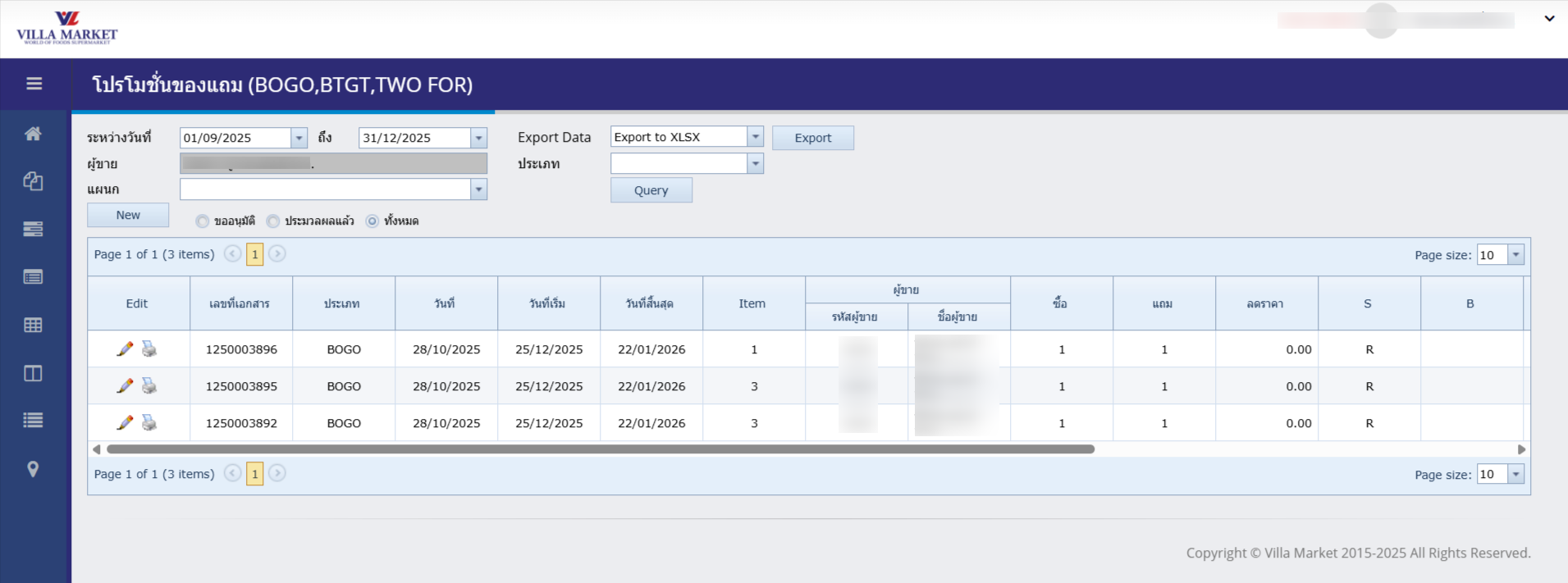
🔍 How to Search (Query)
Select Start Date – End Date Defines the period of promotion documents you want to search for.
Click “Query” Displays all promotion documents within the selected date range.
Filter by Document Status
Approval Requested
Approved / Published
All
2. Promotion Types (Type)
BOGO (Buy X Get X)
“Buy X items, get X items free.” e.g., Buy 1 Get 1, Buy 2 Get 1
TWO-FOR
“Buy X items and get a discount (Baht).” e.g., Buy 2 items, Save 10 Baht
BTGT
Buy one item and get a different item free (e.g., Buy toothbrush, get mini toothpaste)
3. Data Fields on the Promotion Page
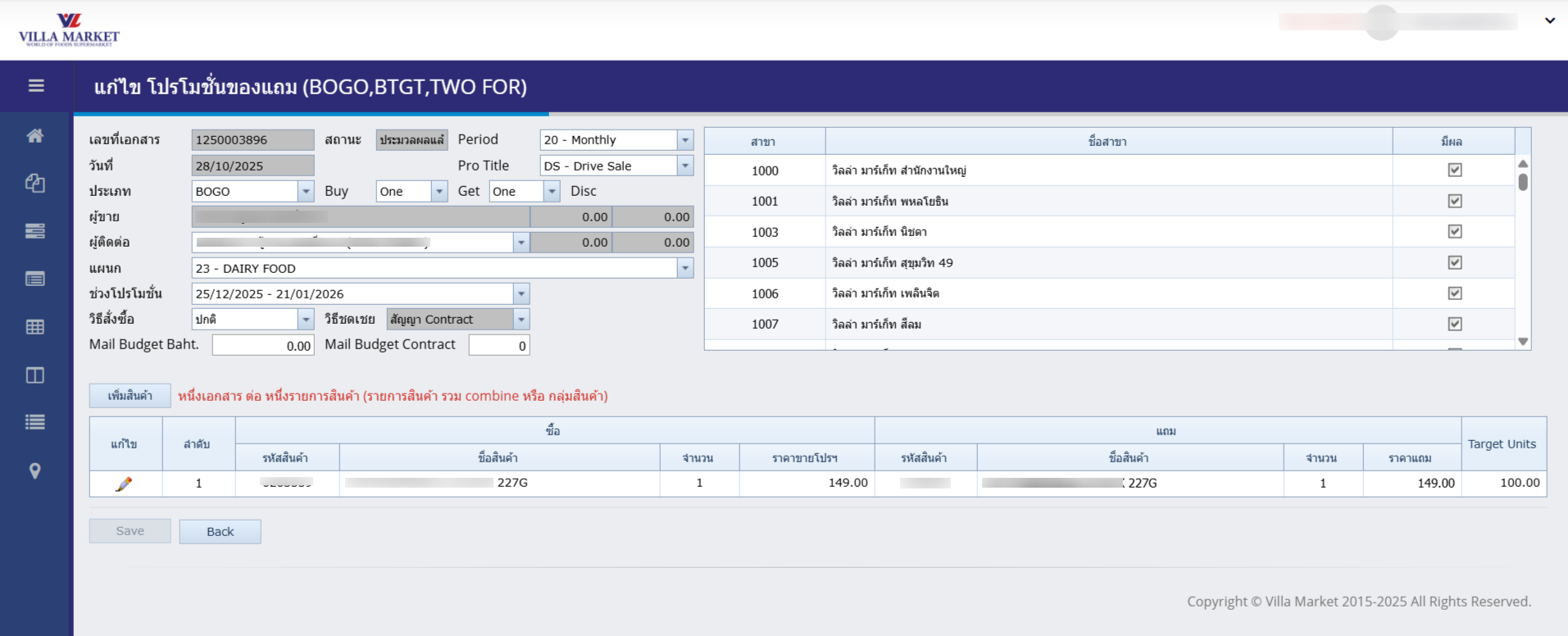
Document No.
Auto-generated running number
Date
Document creation date
Type
Select BOGO or TWO-FOR
BUY / GET / DISC
BUY = Purchase quantity GET = Free item quantity DISC = Baht discount
Supplier / Contact / Department
Select relevant supplier information
Promotion Period
Start and end date of the campaign
Purchase Method
Normal purchase or Contract purchase
Shelf Arrangement
Normal shelf, End-cap, Pallet display, etc.
Mail Budget Baht / Mail Budget Contract
Promotion support budget (if applicable)
4. Dropdown Lists
Period (Campaign Cycle)
20 – Monthly
21 – Mid Month
Pro Title (Promotion Category)
CR – Clearance
DS – Drive Sale
ML – Mail
NS – New Store
NW – New
SN – Seasonal
5. Participating Stores
A list of Villa Market branches will appear on the right side, e.g.:
1000 – Head Office
1001 – Phaholyothin
1003 – Nichada
1005 – Sukhumvit 49
1006 – Ploenchit
Tick “Active” to enable the promotion for selected branches.
6. Adding Products to the Promotion
After completing the general information → click “Add Product”. A pop-up window will appear for selecting BUY / GET items.
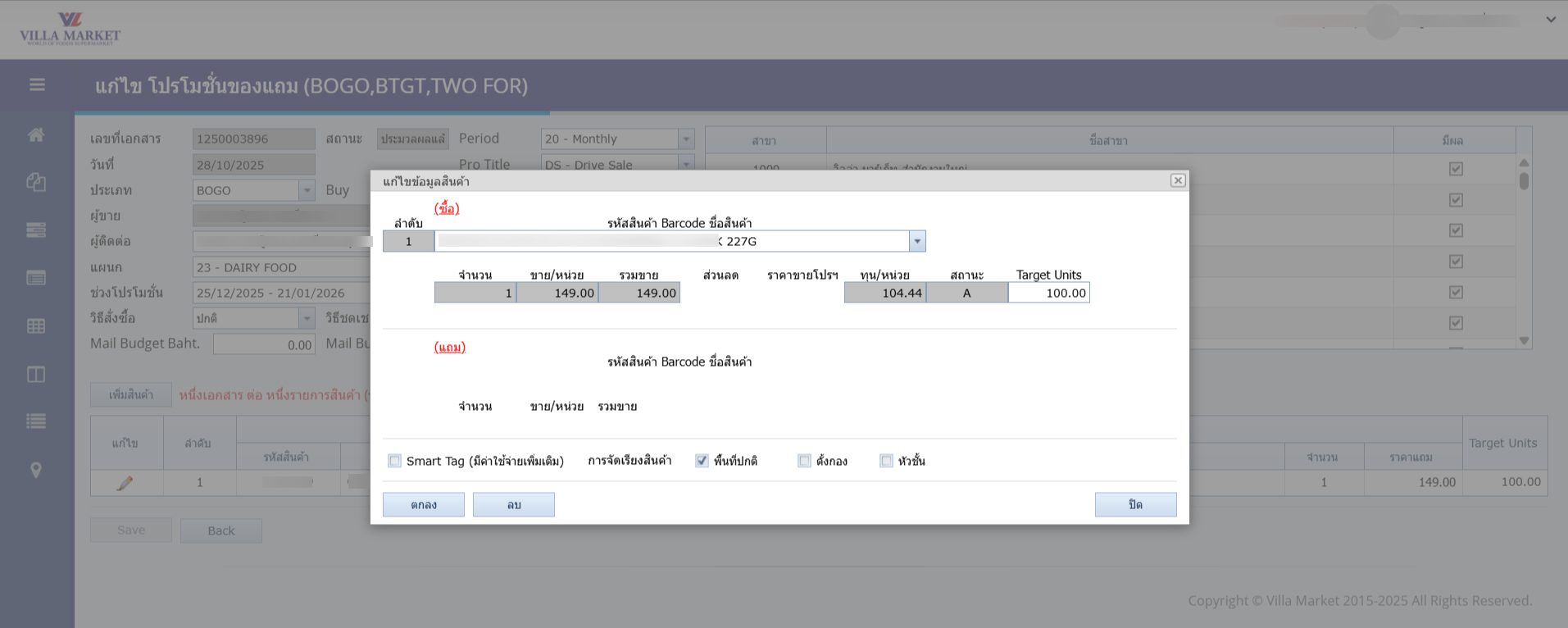
Fields in “Add Product” Window
BUY Item
Select the item to be purchased, including quantity and selling price
GET Item
Select the free item (if applicable)
Product Code / Barcode / Name
Identify the item
Quantity / Unit Sales / Total Sales
Required purchase quantity
Cost per Unit / Status
System retrieves cost and item status
Target Units
Calculation unit (piece, bottle, pack, etc.)
Smart Tag / Shelf Arrangement
Store display location settings
Click OK to save the product. The item will display in the product table on the main screen.
🔴 Note: One promotion document can contain multiple product lines, including combined or grouped items.
7. Saving and Submitting the Promotion
Before saving, ensure:
All required fields are completed
Correct promotion type selected (BOGO or TWO-FOR)
Promotion period defined
Participating branches selected
All BUY/GET items added
Click Save to complete the document. The system will forward it to Villa Market for review and approval.
✅ Summary
The BOGO / TWO-FOR Promotion Page enables suppliers to create and manage promotional campaigns involving free gifts or multi-buy discounts. Once all required fields and product lines are added and the document is saved, the promotion will be sent to Villa Market for verification and approval in the next workflow step.
Last updated