Request Order
Request for Additional Stock (Consign)
he Request Order menu is used when a supplier needs to request additional product replenishment for Villa Market branches. This is typically used when stock is running low or when urgent replenishment is needed.
This system ensures structured and transparent communication between suppliers and the Villa Market purchasing team.
🔹 Request Order List (Main Page)
The main page displays all created request documents, sorted by document date.
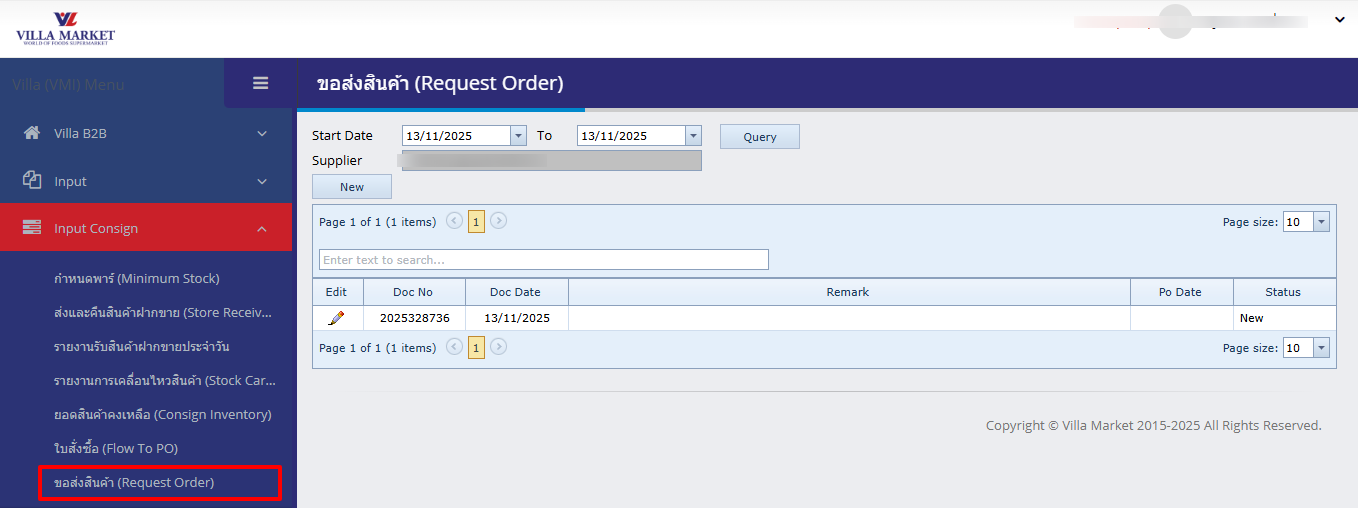
Screen Components
Start Date / To
Select the date range of request documents to view
Supplier
Select the supplier to filter the request list
Query
Load request documents based on selected filters
New
Create a new Request Order document
Document Table
Displays all request documents (Doc No, Create Date, Remark, PO Date, Status)
Edit (✏️)
Open a document for editing or viewing details
🔹 Creating a New Request Order
When clicking New, the system opens the Request Order creation page. Complete the fields as described below.
Step 1: Fill in General Information
Doc No
Document number (auto-generated by the system)
Doc Date
Date of document creation
Supplier
Name of the supplier submitting the request
Remark
Notes such as “High sales, stock running low”
PO Date
Expected delivery date or requested receiving date
Step 2: Add Products to the Request
Select Branch (where stock is needed)
Select Product
Enter the quantity to request in Order Qty
Click Add to include the item in the request list
The system will then display the following analytical data:
Product Analysis Fields
Br Stock / DC Stock
Current stock at branch and DC
Br OnOrder / DC OnOrder
Stock quantities already ordered but not yet received
Avg Sale (Week)
Average weekly sales
Sale Last 30 Days (Qty / Amt)
Sales performance in the last 30 days
Par Qty
Minimum stock level (Par) for that product
💡 Use these values to determine the appropriate request quantity based on real sales and stock levels.
Step 3: Save the Request
After all items have been added, the bottom of the page displays the main action buttons:
💾 Save
Save the current request document
🔙 Back
Return to the list page without saving
⚙️ Process
Submit the request for review/approval (next workflow step)
🔹 Example Scenario
Example: Branch Sukhumvit 33 notices that:
Product: BLACK SWAN TZATZIKI DIP 200G
Stock is almost depleted
Sales have been strong during the past month
The supplier goes to Request Order → New, selects the product, enters quantity (e.g., 20 units), adds a remark like:
“High demand, urgent replenishment needed”
Then presses Save to record the request.
⚙️ Notes & Recommendations
Ensure all required fields are completed before saving
The system will not allow adding items that do not exist in the Master Data
To make corrections after saving → use Edit (✏️) on the document list page
If incorrect data is entered → use Back to exit without saving
📘 Summary
The Request Order menu enables suppliers to request additional stock efficiently when items are running low. The system provides useful analytics such as weekly average sales and current stock levels, allowing the purchasing team to make accurate approval decisions.
✅ Benefits
Easy to use and supports multiple items per request
Ideal for consignment items with fast turnover
Reduces delays in stock replenishment
Improves communication between suppliers and Villa Market
Last updated